

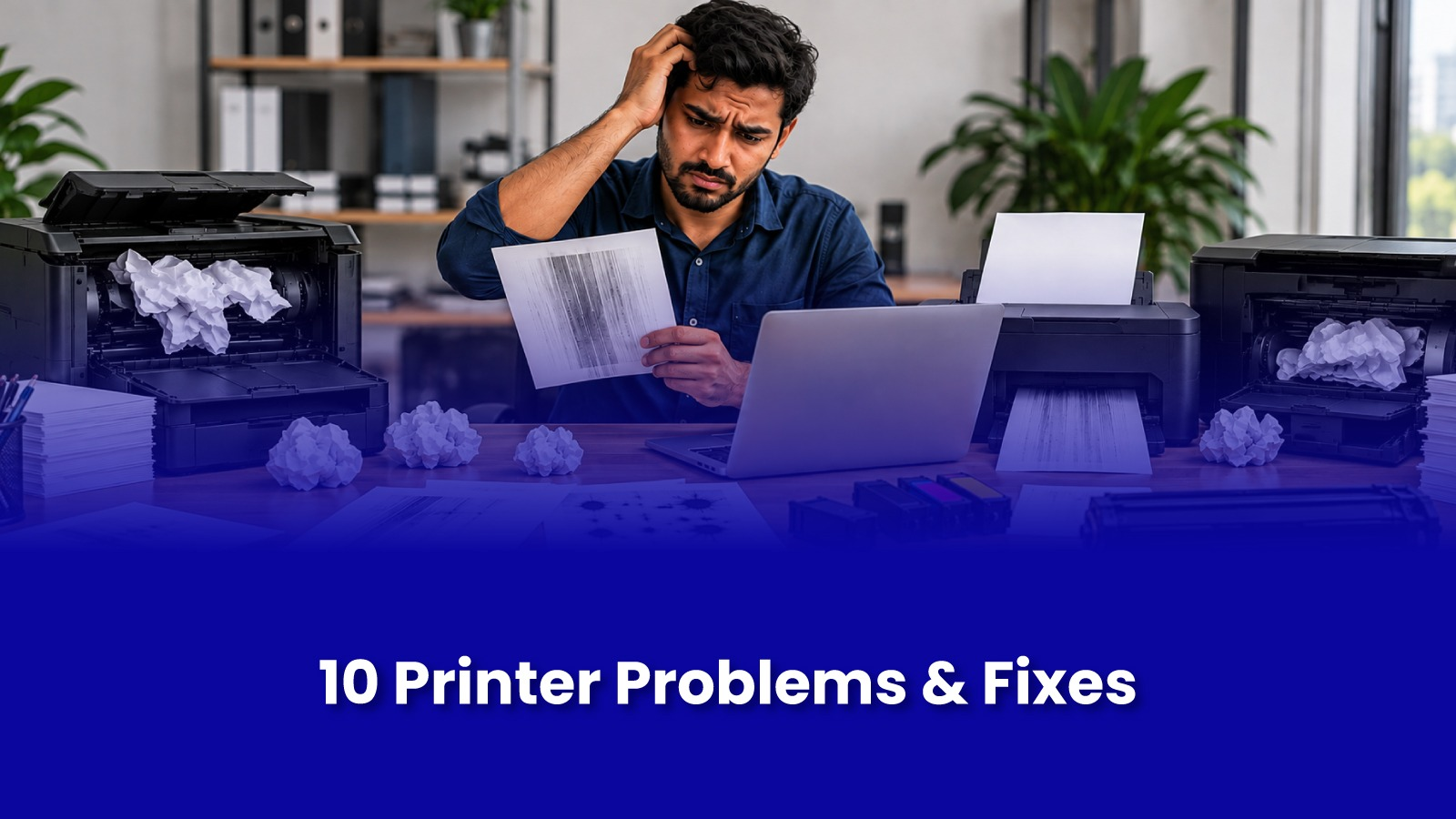
10 Common Printer Problems and When You Need Professional Repair
Printers tend to work fine for months and then, without warning, refuse to cooperate right when something needs to be printed urgently. Most printer problems fall into a small, predictable set of categories, and knowing which one you're dealing with makes the difference between a two-minute fix and a trip to a service center.
This guide runs through the ten most common printer problems, what usually causes each one, and when it's worth calling a technician instead of troubleshooting further.
The problems that come up most often
1. Paper jams
Jams are usually caused by paper that's loaded unevenly, too much paper in the tray, or worn feed rollers that no longer grip the paper properly. Clearing a jam is usually straightforward, but if it happens on nearly every print job, the rollers likely need cleaning or replacement.
2. Printer showing offline
This is almost always a connectivity issue rather than a hardware fault the printer has lost its network connection, or the computer is pointed at the wrong printer queue. Restarting both the printer and the router, then reconnecting, resolves this in most cases.
3. Poor print quality or faded pages
Low ink or toner is the most common cause, but faded or streaky prints can also mean clogged print heads, which happens more often on inkjet printers that sit unused for long stretches. Running the printer's built-in cleaning cycle usually clears this if ink levels are fine.
4. Printer not printing at all
This can be a connectivity problem, a stuck print queue, outdated drivers, or in some cases, a genuine hardware fault. Clearing the print queue and restarting the printer resolves this more often than people expect.
5. Slow printing speed
Large files, high-resolution print settings, or an outdated driver can all slow printing down significantly. Switching to a draft or standard quality setting for routine printing, rather than the highest setting by default, often solves this without any other change.
6. Ink or toner running out too fast
This is sometimes a genuine consumption issue, but it's also commonly caused by print settings defaulting to higher quality than needed, or by a printer that isn't fully compatible with third-party cartridges. Checking the default print quality setting is worth doing before assuming the cartridge itself is faulty.
7. Wi-Fi connectivity dropping
Printers on Wi-Fi can lose connection more easily than wired ones, especially if they're positioned far from the router or if the router's DHCP settings keep reassigning the printer a different IP address. Setting a static IP for the printer often resolves this permanently.
8. Scanner not working (on all-in-one printers)
This is usually a driver or software issue rather than a hardware fault, particularly after a Windows or macOS update changes how the scanner software connects. Reinstalling the scanner driver is the first thing worth trying.
9. Error codes or blinking lights
Manufacturer-specific error codes usually point to something specific a jam sensor still triggered after a jam is cleared, a cartridge not seated properly, or an internal component reaching end of life. Looking up the specific code for the printer model saves time over generic troubleshooting.
10. Printer making unusual noises
Grinding or clicking sounds usually mean something mechanical a worn gear, a paper fragment stuck inside, or a fan issue. This is one of the few printer problems that's worth stopping use for until it's checked, since continuing to run a printer with a mechanical fault can cause more damage.
What to try before calling for printer repair
Restarting the printer and the device it's connected to clears a large share of connectivity and print queue issues. Checking ink or toner levels, and running the built-in cleaning cycle, resolves most print quality problems. Clearing paper jams fully, including any small torn pieces left behind, prevents the same jam from recurring. And updating the printer driver, particularly after a recent computer operating system update, resolves compatibility issues that show up as printing failures.
When to call a professional for printer repair
Mechanical noises, recurring jams despite clearing them properly, and persistent error codes that don't clear after a restart are signs the printer needs a proper inspection rather than continued troubleshooting. A printer that's stopped printing entirely despite all the usual fixes, or one that's out of warranty and worth repairing rather than replacing, is also worth a service visit.
For homes and offices in Andheri, Powai, and Goregaon, a Pockit Engineers engineer can diagnose and often repair printer issues on the same visit, rather than requiring the printer to be dropped off and collected later.
What happens during a printer repair visit
A technician typically starts by checking the printer's error logs and running a test print to identify the fault. Roller cleaning, cartridge issues, and connectivity problems are usually resolved during the visit itself. Internal mechanical faults may need a part ordered in, in which case the engineer will explain the likely cost and turnaround before proceeding.