

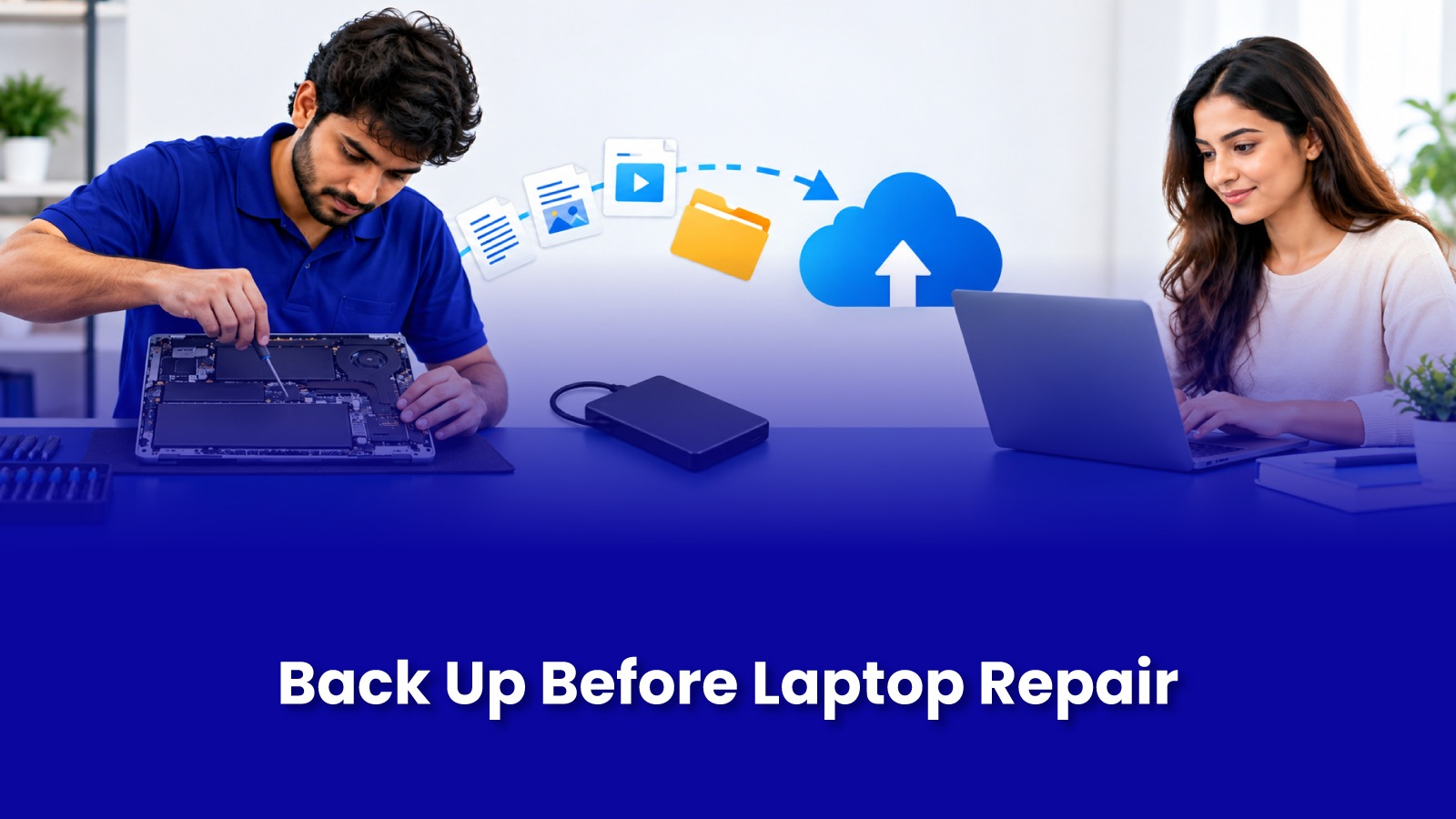
How to Back Up Important Files Before Laptop Maintenance or Repair
Most laptop repairs do not touch your data. A battery swap, a new keyboard, or a fan clean usually leaves every file exactly where it was. But some repairs do. Storage replacement, a Windows or macOS reinstall, motherboard work, and recovery from liquid damage can all put your data at risk. And no technician can promise that a drive which is already failing will survive the next restart.
That is why a backup before any laptop service is the one step that protects you no matter what the repair turns out to be. This guide shows you what to back up, how to do it on Windows and Mac, and what to do if your laptop has already stopped working.
Why backing up before laptop repair matters
There are three reasons to back up before handing over your laptop, even to someone you trust.
The repair itself may need it. If the SSD or hard drive is being replaced, the new drive starts empty. If the operating system is corrupted, the fix may be a clean reinstall.
The fault may get worse. A drive that is clicking, freezing, or showing errors can fail completely at any point. The backup you take today may be the last chance to take one.
Your privacy. Your laptop holds banking apps, saved passwords, work files, and personal photos. Knowing exactly what is on it, and what is safely copied elsewhere, puts you in control.
What to back up (it is more than just documents)
Most people remember their Documents folder and forget everything else. Go through this list before your laptop service.
Files and folders
Desktop, Documents, Downloads, and Pictures folders. Check the Desktop and Downloads carefully, because people save important files there and forget.
Phone photos and videos that were copied to the laptop and deleted from the phone.
Work files stored outside the usual folders, such as a separate D drive partition.
Business and accounting data
If you run a business from your laptop, back up your Tally company data folder, GST and invoice files, and any local database used by billing or inventory software. These are often stored in program folders that a normal copy-paste of Documents will miss.
If you use Outlook with a POP account, your emails may only exist on the laptop as a .pst file. Export it through File > Open & Export > Import/Export. Gmail and most IMAP accounts are stored on the server, so they will come back once you sign in again.
Browser data and passwords
Sign in to Chrome, Edge, or Safari with your account and turn on sync so bookmarks and saved passwords are stored online. If you prefer not to sync, export your bookmarks and passwords from the browser settings and keep the file somewhere secure.
Software licences and installers
Note down licence keys for paid software like Microsoft Office, antivirus, and design tools. Some licences need to be deactivated on the old system before they can be used again.
Do not skip this: encryption recovery keys
This is the step most guides leave out, and it causes the most panic after a repair.
Many Windows 11 laptops come with BitLocker or Device Encryption turned on by default, often without the owner knowing. After certain repairs, especially motherboard or BIOS work, Windows may ask for a 48-digit BitLocker recovery key before it lets you in. Without that key, your data stays locked. You can usually find it by signing in to your Microsoft account and checking the recovery keys section for your devices. Save it or write it down before the repair.
On a Mac, FileVault works in a similar way. Make sure you know your Mac login password and Apple ID password, and if you saved a FileVault recovery key when you set it up, keep it handy.
How to back up your laptop: three options
1. External hard drive or SSD
This is the fastest and most complete option, and it does not depend on your internet speed. Use a drive with more free space than the data you are copying.
On Windows, you can copy your folders manually, or use File History (Control Panel > File History) to back up your user folders automatically. On Windows 11, the Windows Backup app also saves settings and some app data to your Microsoft account.
On a Mac, connect the drive and set it up in Time Machine (System Settings > General > Time Machine). The first backup takes a while, but it creates a full copy you can restore from later.
2. Cloud storage
Google Drive, OneDrive, and iCloud work well for documents and photos, and they protect you even if the laptop is lost or stolen. The catch is upload speed. Backing up a few hundred GB on a home connection can take a long time, so start a day or two before the repair if you are going this route.
3. Both, using the 3-2-1 rule
For files you cannot afford to lose, follow the 3-2-1 rule: three copies of your data, on two different types of storage, with one copy kept somewhere other than your home or office. In practice, that means the laptop, an external drive, and a cloud backup.
Check the backup before the repair begins
A backup you have not checked is a guess. Open a few files from the external drive or cloud folder, including a large file, a photo, and something from a less obvious location like your Tally folder. Make sure they open properly. Compare the total size of the backup with the original folders. It takes five minutes and removes all doubt.
What if the laptop will not switch on?
If your laptop is already dead or will not boot, do not keep switching it on and off. If the drive is failing, repeated attempts can make recovery harder. Tell the technician upfront that the data matters to you.
In many Windows laptops, the drive can be removed and connected to another machine to copy files off. On newer MacBooks with storage built into the logic board, data recovery is more complicated and depends on getting the board working again. The earlier a technician looks at it, the better the chances.
Before the technician arrives: a quick checklist
Files backed up to an external drive or cloud, and the backup checked.
BitLocker or FileVault recovery key saved.
Browser passwords synced or exported.
Licence keys noted down.
Your laptop login password ready, if the technician needs to test the system after the repair.
Charger kept with the laptop, since many faults involve the adapter.
Laptop repair that happens in front of you
One of the biggest worries with laptop service in Mumbai is handing your device to a shop and not knowing what happens to it for the next few days. With Pockit Engineers, a verified technician comes to your home or office and repairs the laptop on site, so it does not leave your sight. You see the diagnosis, you approve the price, and you watch the work get done.