

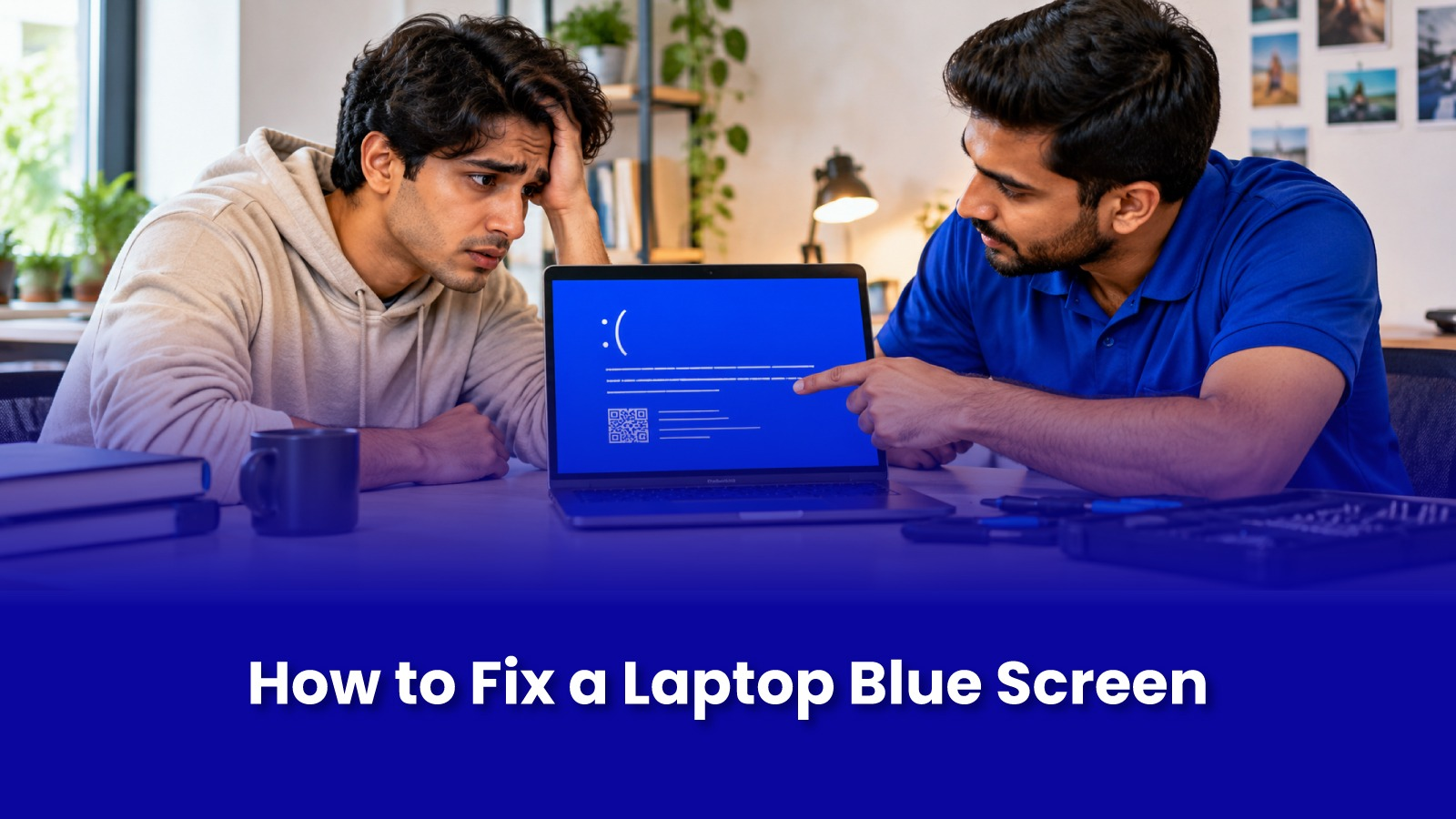
Laptop Showing a Blue Screen? Common Causes and How to Fix the Error
It always happens at the worst moment. You are in the middle of a client call, an online exam or an important email, and the screen turns blue, shows a sad face and a line of text nobody understands, and the laptop restarts on its own.
A blue screen is not random. It means Windows hit a problem serious enough that it shut down to protect your data. Most of the time the cause is a faulty driver, a bad update, corrupted system files, or failing RAM or storage. This guide explains what each cause looks like, what you can fix at home, and when it is time to call a laptop technician.
What a blue screen actually means
The blue screen, often called the Blue Screen of Death or BSOD, is Windows' emergency stop. When the system detects something it cannot safely recover from, it halts everything, saves a small error report, and restarts. On some recent Windows 11 updates, Microsoft has made this screen black instead of blue, but it works the same way.
The most useful thing on that screen is the stop code, a line such as CRITICAL_PROCESS_DIED or MEMORY_MANAGEMENT. Take a photo of it on your phone before the laptop restarts. It tells you, or your technician, where to start looking.
Common causes of a laptop blue screen
Faulty or outdated drivers
Drivers are the small programs that let Windows talk to your graphics card, Wi-Fi card, touchpad and other hardware. A buggy or outdated driver is the most common cause of blue screens. Stop codes like DRIVER_IRQL_NOT_LESS_OR_EQUAL usually point here.
A Windows update that went wrong
If the crashes started right after an update, the update is the first suspect. Sometimes a new update does not get along with an older driver already on the laptop.
Corrupted system files
A sudden power cut, a forced shutdown or malware can damage the files Windows needs to run. Once they are corrupted, Windows may crash during startup or at random.
Failing RAM
Memory faults cause crashes that seem to have no pattern, often with stop codes like MEMORY_MANAGEMENT or PAGE_FAULT_IN_NONPAGED_AREA.
A failing hard drive or SSD
If the laptop also takes ages to boot, freezes while opening files, or an older hard drive makes clicking sounds, the storage may be failing. Look for KERNEL_DATA_INPAGE_ERROR or INACCESSIBLE_BOOT_DEVICE.
Overheating
Dust-clogged fans and dried thermal paste make laptops run hot. A laptop that crashes mostly during heavy use, such as video calls, gaming or editing, is often overheating.
New hardware or software
A new antivirus, a pirated app, a cheap charger or a RAM stick added recently can all trigger crashes. Think about what changed just before the problem started.
How to fix a blue screen error, step by step
Try these in order and stop when the crashes stop.
Back up your files first
If the laptop still starts, copy anything you cannot afford to lose to Google Drive, OneDrive or an external drive. Repeated blue screens can be an early sign of a dying drive.
Undo the last change
Uninstall the app, driver or update you added just before the crashes began. For updates, go to Settings, then Windows Update, then Update history, and choose Uninstall updates.
Start in Safe Mode if Windows will not load
Safe Mode loads Windows with only the basics, so you can fix things without crashing. Hold Shift and click Restart, then go to Troubleshoot, Advanced options, Startup Settings, Restart, and press 4.
Update or roll back drivers
Open Device Manager and look for anything with a yellow warning sign. Right-click it and choose Update driver. If a driver was updated recently, open its Properties and choose Roll Back Driver. Graphics and Wi-Fi drivers are the usual culprits.
Repair system files
Open Command Prompt as administrator and run sfc /scannow, then DISM /Online /Cleanup-Image /RestoreHealth. These scan Windows for damaged files and repair them. Each can take 15 to 30 minutes.
Test the RAM and the drive
Search for Windows Memory Diagnostic in the Start menu and choose Restart now and check for problems. To check the drive, run chkdsk C: /f /r in Command Prompt as administrator and restart. If either test reports errors, the part likely needs replacing.
Use System Restore
If nothing else works, search for Create a restore point and open System Restore. It takes Windows back to a date before the problem started without touching your personal files.
A Mumbai-specific tip: power cuts and humidity
In Mumbai, two everyday conditions cause more blue screens than people realise. Frequent power trips during the monsoon can shut a charging laptop down mid-write and corrupt system files, so plug your charger into a surge protector or UPS where possible. Humidity and dust also build up inside the laptop over time, clogging the fan and causing overheating, so a laptop that has never been cleaned internally in two or three years is worth getting serviced.
Common mistakes to avoid
Ignoring repeated blue screens because the laptop restarts fine afterwards. Repeated crashes are often an early warning of failing RAM or storage.
Downloading "driver updater" or "PC cleaner" tools from random websites. Many install the wrong drivers or bundle malware.
Force shutting down the laptop again and again during a crash. This increases the chance of corrupting system files.
Reinstalling Windows before backing up your data. A fresh install wipes your files.
When to call a laptop technician
DIY fixes handle software problems well, but they cannot fix hardware. Call a technician if the blue screen appears even in Safe Mode, if the memory or disk test reports errors, if the laptop is hot to the touch or the fan is unusually loud, if the error appears before Windows starts loading, or if the laptop has been dropped or had liquid spilled on it.
Laptop repair in Mumbai at your doorstep
Most people looking for laptop repair in Mumbai end up with two options: carry the laptop to a shop and wait days, or call someone local and hope the price does not change once the laptop is opened.
Pockit Engineers offers doorstep laptop repair across Mumbai. Instead of carrying your laptop to a service center, a verified laptop technician comes to your home or office, diagnoses the blue screen, and fixes it on site wherever possible, with the price shared before the work begins. Driver and software fixes, RAM replacement, SSD replacement and internal cleaning for overheating laptops are all handled at your doorstep, and the same team covers desktop and computer repair in Mumbai.