

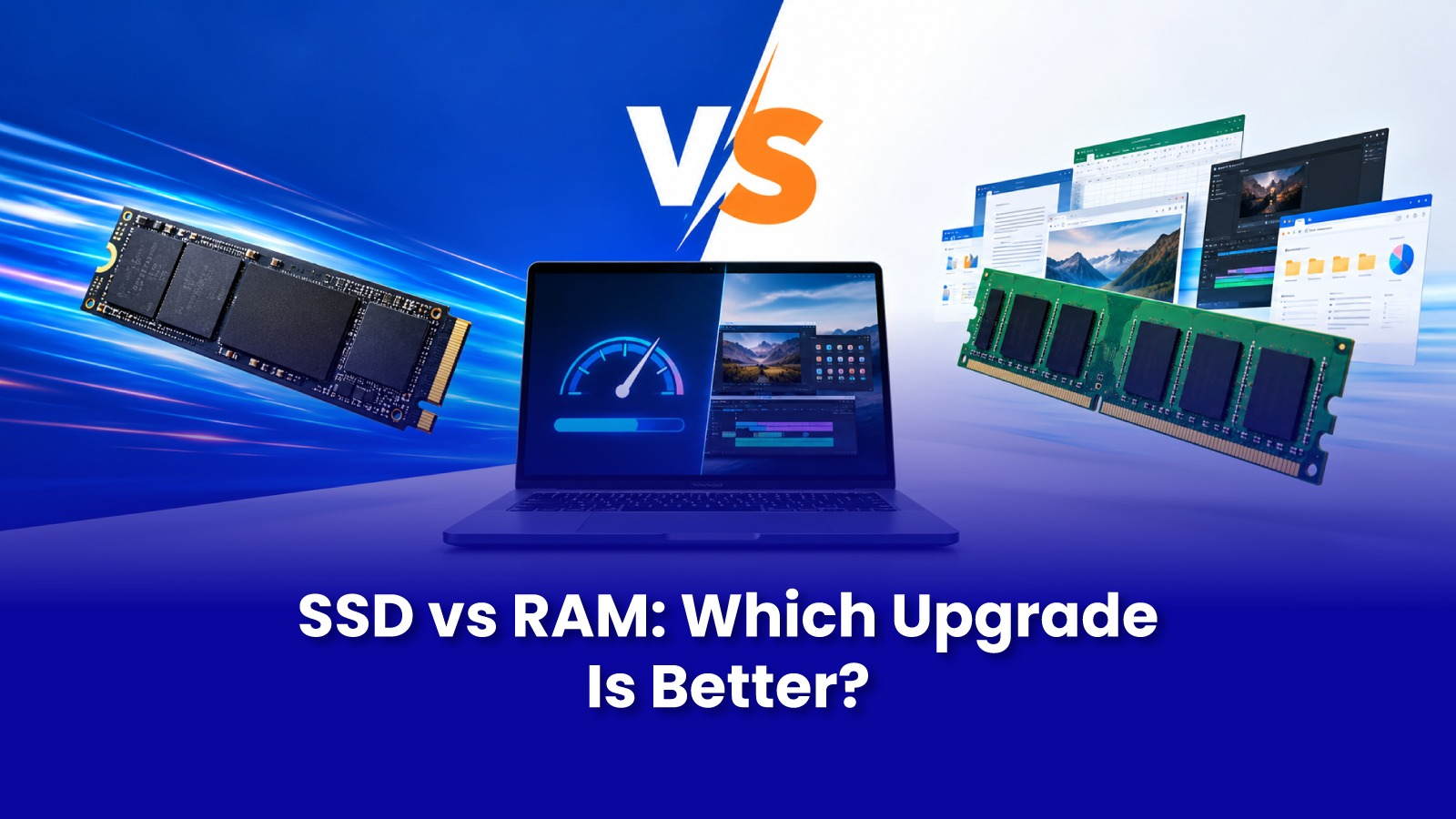
SSD vs RAM Upgrade: Which Is Better for Improving Your Computer's Performance?
When a computer slows down, most people assume it needs "more RAM" because that is the advice they have heard most often. Sometimes that is right. Often it is not, and people spend money on an upgrade that makes almost no difference.
The right upgrade depends on what kind of slow your computer is. In most older laptops and desktops that still run on a hard drive, an SSD makes the biggest difference. In computers that already have an SSD, more RAM is usually the answer. This guide helps you tell which one you need before you spend anything.
Start with three questions
Does your computer take more than a minute to start? Slow startup almost always points to the drive.
Do apps take a long time to open even when nothing else is running? That is also usually the drive.
Is the computer fine with a few apps open but freezes when you have many browser tabs, a video call and a spreadsheet running together? That points to RAM.
Keep your answers in mind as you read the sections below.
What an SSD upgrade does
An SSD (solid state drive) is where your computer stores Windows, your apps and your files. It replaces the older hard drive (HDD), which uses a spinning disk and a moving arm to read data.
That moving arm is the bottleneck. A typical laptop hard drive reads data at around 100 MB/s. A basic SATA SSD reads at around 500 MB/s, and faster NVMe SSDs go well beyond 2,000 MB/s. In everyday use, this means faster startup, faster app loading and faster file opening. A computer that takes two minutes to boot can be ready in well under a minute.
What a RAM upgrade does
RAM is your computer's short-term working space. Everything you have open right now, every browser tab, the video call and the spreadsheet, sits in RAM while you use it.
When RAM runs out, Windows borrows space from the drive to make up the difference, and everything slows down, especially on a hard drive. More RAM does not make a single app faster. It lets you run more things at once without slowing down.
SSD or RAM: which one do you need?
Upgrade to an SSD first if
Your computer still has a hard drive, takes a long time to start, and is slow to open apps even when little else is running. For most computers older than four or five years, this is the single most noticeable upgrade.
Add RAM if
Your computer already has an SSD but slows down when you multitask, and memory use in Task Manager regularly stays above 80 to 85 percent.
Do both if
You have an older computer with 4 GB of RAM and a hard drive running Windows 11. Upgrading both together is often the best value.
Do neither if
Your computer already has an SSD and 16 GB of RAM but is still slow. The problem is more likely to be software, malware, overheating or a failing part, and an upgrade will not fix it.
How to check your computer in two minutes
Press Ctrl, Shift and Esc together to open Task Manager, then click the Performance tab. Click Disk 0, and Windows shows whether your drive is an SSD or HDD. Click Memory to see how much RAM you have and how much is in use. Open the apps you normally work with and watch the memory figure. If it stays above 80 to 85 percent, RAM is your bottleneck.
How much RAM is enough
For most people, 8 GB is the minimum for Windows 11 to feel usable. 16 GB is comfortable for work from home setups, students juggling online classes and assignments, and anyone who keeps many browser tabs open. Designers, video editors and heavy multitaskers may need 32 GB. Going from 16 GB to 32 GB will not help if you only browse and use Office.
Check before you buy: can your computer be upgraded?
Soldered RAM
Many thin laptops have RAM fixed to the motherboard, which cannot be upgraded. Some have one free slot alongside soldered memory.
SATA or NVMe
Some laptops support only SATA SSDs, others support NVMe, and some support both. Buying the wrong type is one of the most common upgrade mistakes.
Maximum supported RAM
Every motherboard has a limit on how much RAM it can use. Check it before buying extra memory.
MacBooks with Apple silicon
On MacBooks with Apple's M-series chips, RAM and storage are built in and cannot be upgraded at all.
Desktops
Desktops are usually the easiest to upgrade, with spare slots for both RAM and drives.
Upgrade or buy new?
If your computer is less than five or six years old and works fine apart from being slow, an upgrade is usually worth it. An SSD and extra RAM cost a fraction of a new laptop and can give an older machine several more useful years. If the computer is older, has a weak processor, a failing battery and other worn parts, the money may be better spent on a new one.
A Mumbai-specific tip: heat and dust slow computers too
In Mumbai, many computers feel slow not because of the drive or RAM but because of heat. Humid air and dust collect inside laptops and desktops, clog the fans, and make the processor run hot. When it gets too hot, the processor slows itself down to stay safe. If your computer is slow, loud and warm, get it cleaned internally at the same time as any upgrade, or the new parts will not reach their full speed.
Common upgrade mistakes to avoid
Adding RAM to a computer that still runs on a hard drive and expecting it to feel fast. The drive will still hold it back.
Buying the wrong SSD type or RAM speed for your computer. Always check compatibility first.
Skipping data cloning to save time. A proper SSD upgrade copies Windows, your apps and your files to the new drive so everything stays as it was.
Using unbranded or refurbished parts sold as new. They fail early and can corrupt your data.
Upgrading a laptop that is still under warranty without checking the brand's terms first.
SSD and RAM upgrades and computer repair in Mumbai
Most people put off upgrades because of the hassle: finding the right part, finding someone they can trust, and leaving the computer at a shop for days.
Pockit Engineers offers doorstep SSD and RAM upgrades, laptop service and computer repair across Mumbai. Instead of carrying your computer to a service center, a verified computer technician comes to your home or office, checks which upgrade will actually help, confirms compatibility, and fits genuine parts on site, with the price shared before the work begins. Your data is cloned to the new drive so you are back to work the same day.